
Complete outreach & schedule a follow-up
Move a lead forward by recording what actually happened.
Lead → Complete / Activity
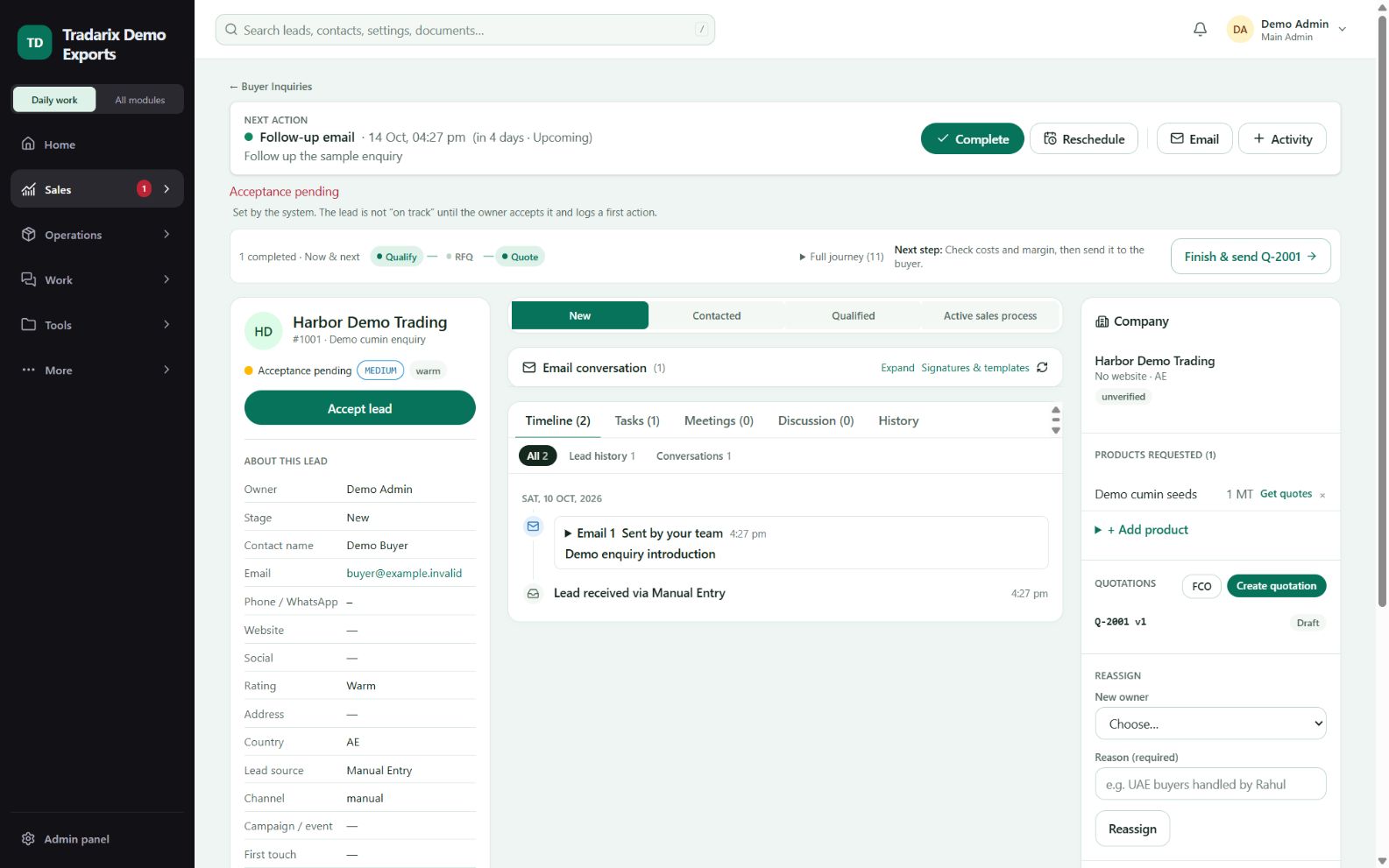
Step by step
Accept the assigned lead when that action is available. Review its Next action.
After contacting the buyer, open Complete or Activity. Choose what you did and the outcome.
Choose the next action type. “Follow-up email” schedules a task; it does not send an email automatically.
Use any 1–7 day shortcut or select the date/time. Add context and a longer-gap reason when required.
Log the action and verify the updated timeline and next action. Update the sales stage only when justified.
Demo: Email → Follow-up required → Follow-up email → 5 days → Log action.
FAQ
Does Follow-up email send automatically?
No. It schedules the next action. Compose and send the actual email separately.
Read related guide →Can I choose 4, 5 or 6 days for a follow-up?
Yes. The Log action form offers each day from 1 through 7, plus the date/time field.
Read related guide →Can I schedule beyond the allowed gap?
Use the longer-gap reason path when offered. Existing company/lead validation still decides whether it is allowed.
Read related guide →Reviewed 10 October 2026 · CRM 0.53.1