
Login, invitations & 2FA
Activate your account and secure your own sign-in.
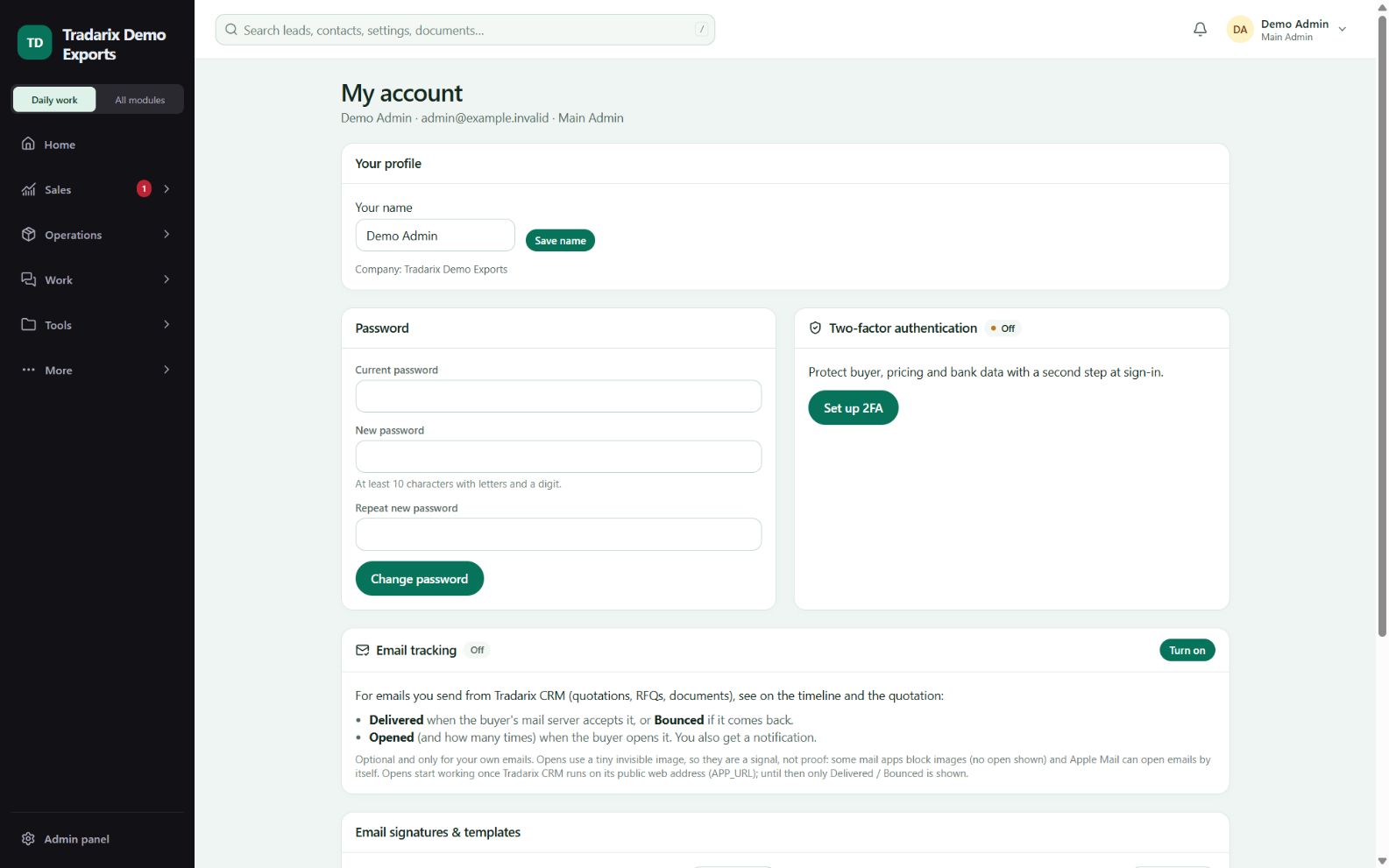
Login → Home → Activate 2FA / My account
Step by step
Use the latest activation invitation; an old or expired link needs a fresh invitation from an admin.
Set your own password and sign in. Close the welcome popup to view Home.
If setup is required, open the Activate 2FA notification or the setup action in My account.
Add the displayed account to your authenticator and verify the current code.
Sign in again if prompted. An already enrolled account must pass the authentication challenge.
Demo: a new team member enrolls their own authenticator, not a former employee’s device.
FAQ
Does changing my password also set up 2FA?
No. Password setup and authenticator enrollment are separate steps.
Read related guide →Can I close the welcome popup?
Yes. Close it to view Home; any required security setup still applies.
Read related guide →Why are business pages locked before 2FA?
Your company may require 2FA. Open Activate 2FA and complete enrollment with your own authenticator.
Read related guide →Reviewed 10 October 2026 · CRM 0.53.1