
Connect an email mailbox
Configure sending and incoming replies together.
Admin → Integrations → Email
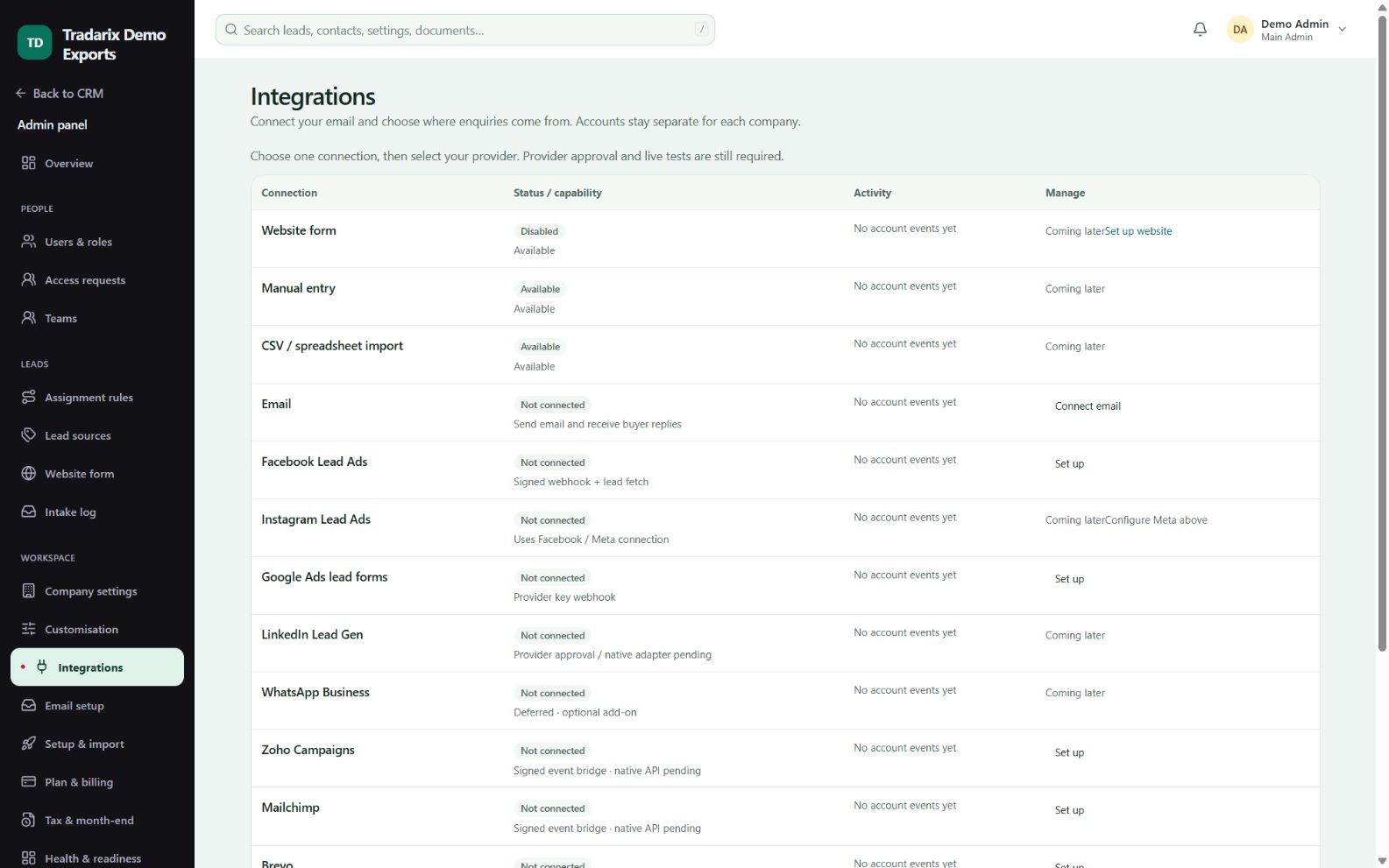
Step by step
A company Main Admin or 2nd Admin opens the Email connection and chooses the provider.
Use Gmail/Microsoft authorization when available and configured, or enter your provider’s SMTP and IMAP details.
Enter the actual mailbox address and the provider-approved password/app password. Match port and TLS mode exactly.
Save the connection. Setup verifies outgoing and incoming login before activating it.
Send a controlled test to an address you own. Reply from that address and confirm the permitted buyer conversation receives it.
Demo placeholders: sender@example.invalid; copy server, port and security from your real provider, not from these placeholders.
FAQ
Does SMTP alone connect incoming replies?
No. Reply sync also requires the configured incoming mailbox/provider connection.
Read related guide →Should I use port465 with direct SSL/TLS?
For a provider that specifies SMTP465 with SSL/TLS, match that direct TLS setting. Use your provider’s exact port/security instructions.
Read related guide →Can any mailbox use my usual account password?
No. The provider may require an app password or OAuth authorization. Follow its approved connection method.
Read related guide →Reviewed 10 October 2026 · CRM 0.53.1