
Write, reply & attach files
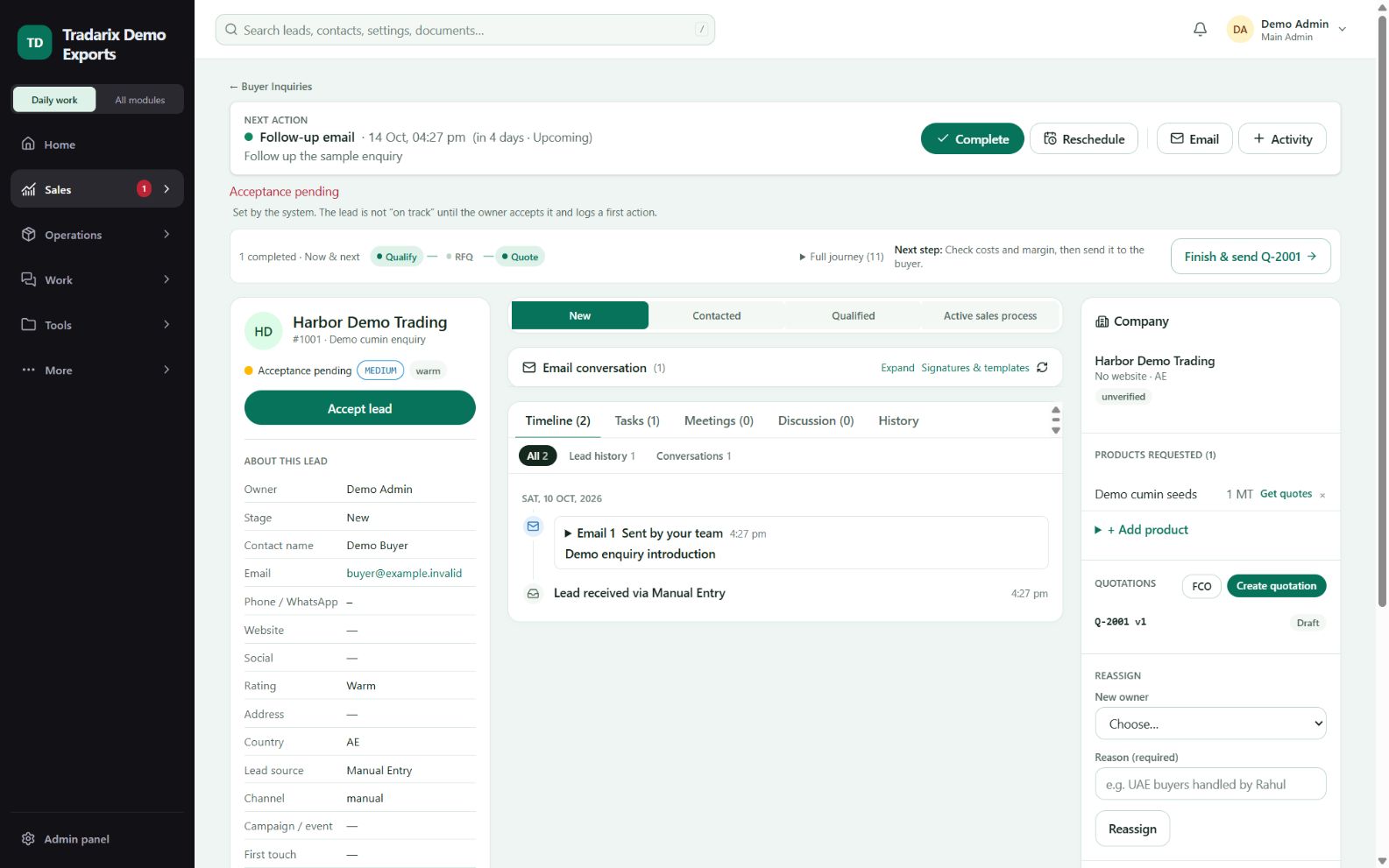
Use the composer and keep the conversation with the buyer record.
Lead / Contact → Email → Compose / Reply
Step by step
Open the permitted buyer’s email conversation and choose Compose or a message’s Reply action.
Check the recipient and subject. Write your message or select a saved template.
Your saved default signature appears automatically. Review it before sending.
Attach at most 10 files with a combined size of 20 MiB. The provider may enforce a smaller message limit.
Send once and review the result and timeline. Save a draft if you need to return later.
Demo: send a harmless test message to your own controlled test contact; do not test on an actual buyer.
FAQ
What is the outgoing attachment limit?
Up to10 files and20MiB combined in the normal composer. Provider message-size/encoding limits may be smaller.
Read related guide →Will attachments stay inside a saved draft?
No. Reattach the files after reopening a draft.
Read related guide →Why is Send unavailable in a blank email?
Check verified mailbox, recipient, subject, message, template values and file validation. The composer explains missing requirements.
Read related guide →Reviewed 10 October 2026 · CRM 0.53.1