
Invite, remove & reactivate users
Manage staff access while retaining business history.
Admin → Users & roles
Step by step
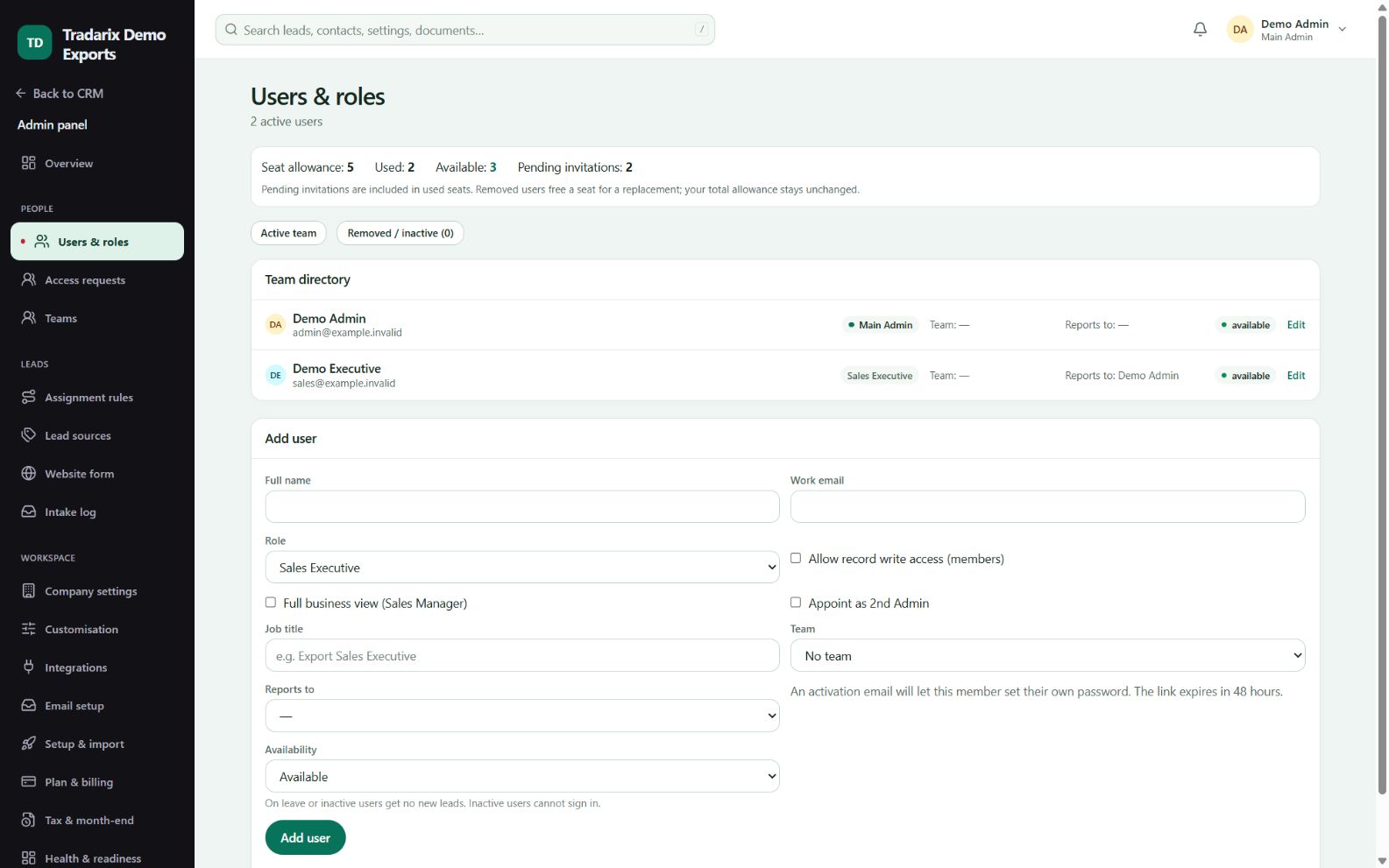
A permitted Main/2nd Admin opens Users & roles and checks available purchased seats.
Enter the user’s name, email, access role and reporting relationship. Send the activation invitation.
Use the compact Remove user action when staff leave. Complete password/authenticator and typed-name verification as requested.
Reassign their open work separately. Removal revokes access and releases the seat; commercial history remains.
To reactivate, use the inactive user’s edit flow and required admin verification. The user gets fresh activation and enrolls a new authenticator.
Demo: 5 purchased seats with 3 active/reserved seats leaves 2 available; removing one occupied seat makes 3 available.
FAQ
Can I reuse the same email for an inactive employee?
Use the existing inactive user’s approved reactivation flow. It preserves history and issues fresh activation.
Read related guide →Will a returning user use the old password and 2FA?
Approved reactivation clears old password, sessions and authenticator enrollment; the user sets them up afresh.
Read related guide →Does removing a user delete their buyer history?
No. Access is revoked while identity and commercial history remain. Reassign open work separately.
Read related guide →Does removing staff return a purchased seat?
Inactive users consume no seat. The purchased allowance stays the same and the seat becomes available.
Read related guide →Can a 2nd Admin remove the Main Admin?
No. Admin hierarchy and self-removal restrictions remain enforced.
Read related guide →Reviewed 10 October 2026 · CRM 0.53.1